Download — Email Campaign Sender v2.1.0 | ridigital
We couldn't confirm a completed purchase

Email Campaign Sender v2.1.0

If you've already purchased, email [email protected] and we'll sort it out right away. Haven't purchased yet? Choose your download below to get started.

Recommended for Windows

Windows App v2.1.0

The easiest way to get started. Download, double-click to install, and you're running — no Python, no setup, no technical knowledge needed. Installs like any professional desktop software.

Platform: Windows 10 and 11 (64-bit)
File: ridigital_EmailCampaignSender_v2.1.0_Setup.exe
Install time: Under 1 minute
Purchase License to Download

No Python required

Windows · Mac · Linux

Python GUI v2.1.0

The same full app, available on every major desktop OS. Opens with a double-click — no coding, no command line. Requires Python 3.8+ (free, one-click install) and Google Chrome.

Platform: Windows 10/11, macOS (Intel + Apple Silicon M1/M2/M3), Linux
File: ridigital_EmailCampaignSender_Python_GUI_v2.1.0.zip
Requires Python 3.8+ first — free from python.org
Purchase License to Download

Requires Python 3.8+ — free from python.org

Both versions use the same license key. One purchase covers you on any machine you own. Download whichever suits your system — or download both and switch any time.

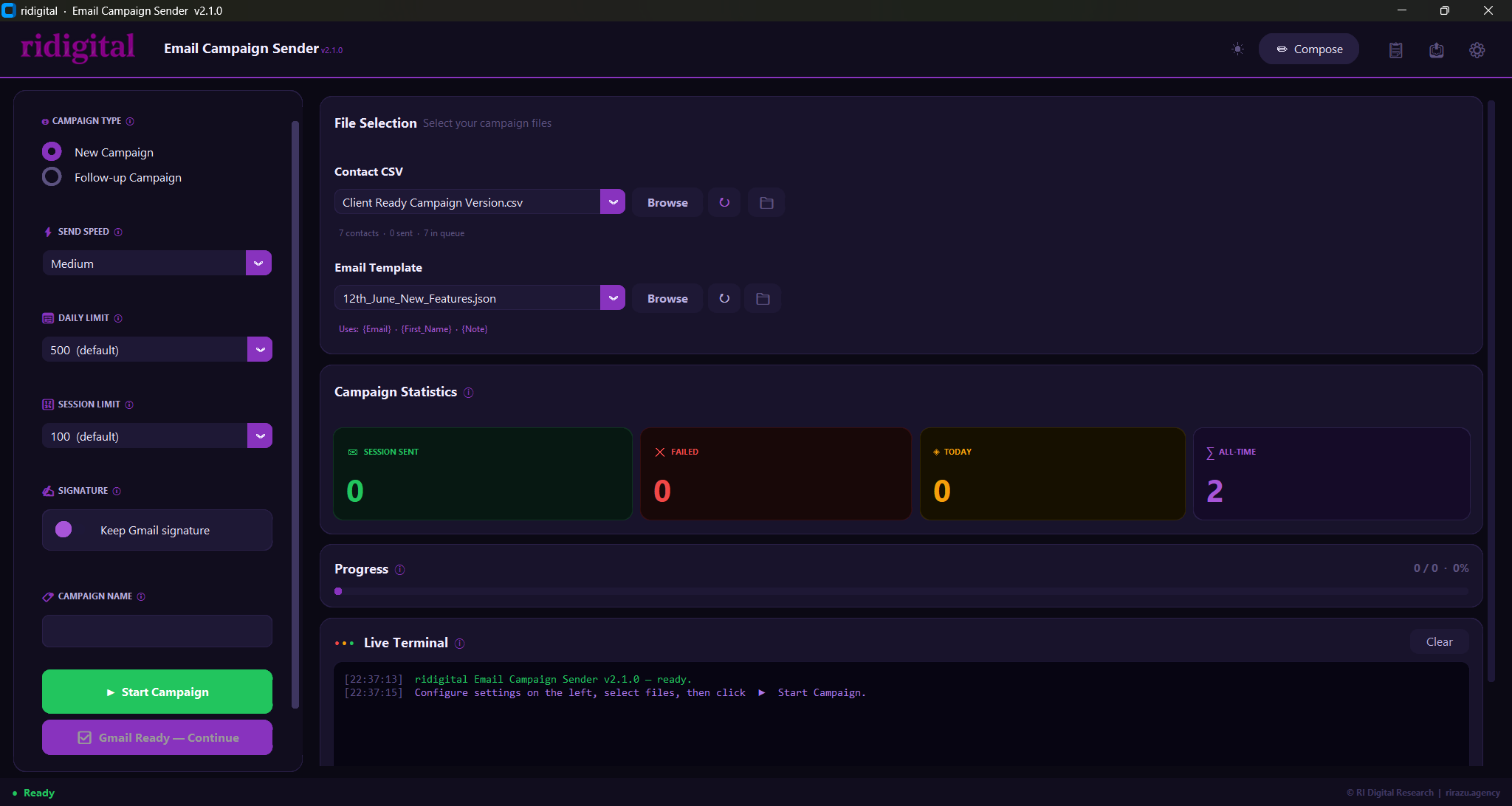
What you're about to install

Email Campaign Sender v2.1.0 — Dark Theme
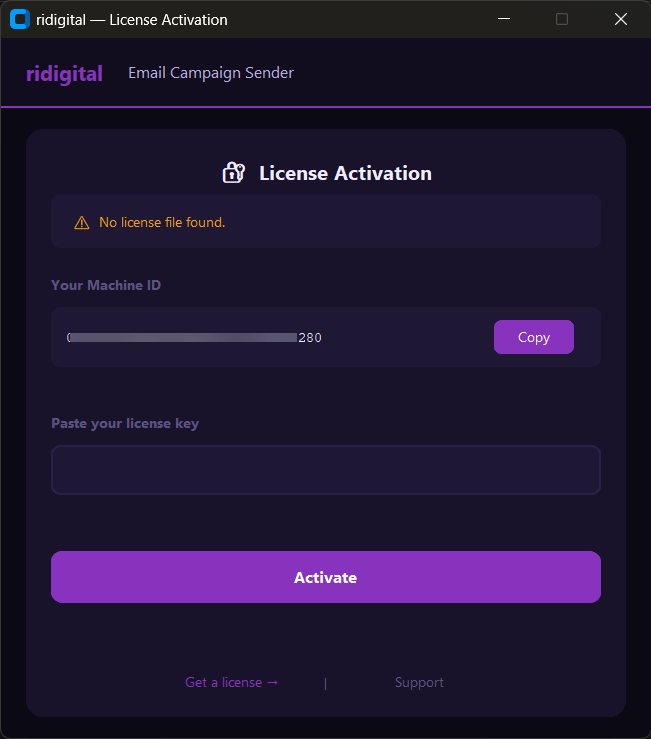
Activation screen — your Machine ID is shown automatically on first launch
Activation screen — shown automatically on first launch
Next Steps

Up and running in 5 steps

1
Download the version for your system
Click the download button above. Windows users — the Windows App v2.1.0 is the easiest option. Mac or Linux users — download the Python GUI v2.1.0 ZIP.
2
Install or extract
Windows App: Double-click the .exe file — the setup wizard installs it in under a minute.
Python GUI: Extract the ZIP and keep both .py files in the same folder. Install Python 3.8+ first if you haven't already (Windows: tick "Add Python to PATH" during install).
3
Open the app
Windows App: Launch from the Desktop shortcut or Start Menu.
Python GUI: Double-click either .py file. On first launch, all required packages install automatically — wait about 30 seconds, then the GUI opens.

The activation screen appears automatically — you'll see your unique Machine ID displayed.
4
Get your license key
Copy your Machine ID from the app and submit it at the activation page below. Include your payment email address. Your license key arrives by email within minutes.
Key not arrived within 30 minutes? Check your spam folder.
5
Paste your key and activate — done
Return to the app, paste your license key into the activation dialog, and click Activate. The app opens fully — you're ready to send campaigns.
FAQ

Quick answers

Email [email protected] with your purchase email address and we will send you the download link again. Machine transfers are always handled at the same address.
Yes — one license key works for both the Windows App v2.1.0 and the Python GUI v2.1.0. Download whichever you need now, or download both. The same key activates either version on one machine at a time.
Usually within minutes during business hours. If your key hasn't arrived within 30 minutes, check your spam folder first, then email [email protected].
Machine transfers are always free. Email [email protected] with your purchase email and new Machine ID (shown in the app's activation screen on the new machine) and we'll reissue your key — usually same day.
All future updates included free
One-time payment — no subscription
Free machine transfers — always

Ready to activate?

Your license key arrives within minutes of submitting your Machine ID. Open the app, copy your Machine ID, and submit it at the activation page.

Activate My License
30-day money-back guarantee. Not satisfied? Email [email protected] within 30 days for a full refund — no questions.